
Chapter 7. Using AspGrid in Frames
Contents
7.1 Task Description
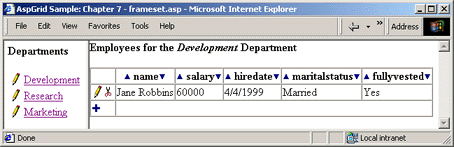
The sample file
invokes two frame pages, frame_left.asp and frame_right.asp. All three files are located in the directory \Samples\07_frames.7.2 Left-side Frame: Department List
<frame src="frame_left.asp" name="LeftFrame" marginwidth="5" marginheight="5" scrolling="auto" nowrap target="RightFrame">
<frame src="frame_right.asp" name="RightFrame" marginwidth="0" marginheight="0" scrolling="yes">
</frameset>
strConnect = "DRIVER={Microsoft Access Driver (*.mdb)};DBQ=" & Server.MapPath("..\db\aspgrid.mdb")
' Create instance 2 of AspGrid for the Employees table
Set Grid = Server.CreateObject("Persits.Grid")
' Connect
Grid.Connect strConnect, "", ""
' Specify SQL statement
Grid.SQL = "select id, name from departments"
' Hide ID column
Grid.Cols("id").Hidden = True
' Specify location of button images
Grid.ImagePath = "../images/"
' Show control buttons on the left only
Grid.ShowLeftSideButtons False
' Hide header
Grid.ShowHeader = False
' Disallow adding and deleting
Grid.CanDelete = False
Grid.CanAppend = False
' Hide Table border
Grid.Table.Border = 0
' Turn name field into a hyperlink
Grid.Cols("name").AttachExpression "<A TARGET=""RightFrame"" HREF=""frame_right.asp?id={{id}}&name=[[name]]"">{{name}}</A>"
Grid.Display
%>
Note that we stripped our grid of a header and borders to make it look like a regular list. We also chose to remove the "Delete" and "Add New" buttons, but left the "Edit" button intact, so a user could change the names of the departments, but could not add new or delete existing ones.
The only line of code here that deserves our attention is a call to the AttachExpression method of the Column object:
HREF=""frame_right.asp?id={{id}}&name=[[name]]"">{{name}}</A>"
This method can be used to turn a grid column into a hyperlink (as we are doing here), image or any other expression. A string passed to AttachExpression may contain one or more references to a table field in the form {{field name}} or [[field name]]. A field name in double braces {{...}} will be automatically replaced with the current field value. A field name in double square brackets [[...]] will be replaced with the field value in a URL-encoded form.
For example, if the current record of the Departments table contains the values id = 3 and name = "R & D", the following string will be generated for the name column:
Notice that the first occurrence of "name" is replaced by the URL-encoded value R+%26+D and the second is replaced by the original value R & D.
The purpose of this link is to pass two parameters to the right frame: the department ID and department name. The right frame uses these parameters to display information on employees who work for the selected department.
7.3 Right-side Frame: Department Employees
<%
' Department ID parameter passed from the left frame
id = Request("id")
' Do not display anything when page first comes up
if id = "" Then Response.End
' Build connection string to aspgrid.mdb
strConnect = "DRIVER={Microsoft Access Driver (*.mdb)};DBQ=" & Server.MapPath("..\db\aspgrid.mdb")
' Create instance 2 of AspGrid for the Employees table
Set Grid = Server.CreateObject("Persits.Grid")
' Connect
Grid.Connect strConnect, "", ""
' Specify SQL statement
Grid.SQL = "select id, dept_id, name, salary, hiredate, maritalstatus, fullyvested from employees where dept_id = " & id
' Specify the default value for dept_id
Grid.Cols("dept_id").DefaultValue = id
' Persist the "id" parameter within this frame
Grid.ExtraFormItems = "<INPUT TYPE=HIDDEN NAME=id VALUE=" & id & ">"
Grid.ExtraFormItems = Grid.ExtraFormItems & "<INPUT TYPE=HIDDEN NAME=name VALUE=""" & Request("name") & """>"
' Hide id and dept_id columns
Grid.Cols("id").Hidden = True
Grid.Cols("dept_id").Hidden = True
' Enable sorting
Grid.ColRange(3, 7).CanSort = True
' Set INPUT size
Grid.ColRange(3, 7).InputSize = 10
' Specify location of button images
Grid.ImagePath = "../images/"
' Set CELLSPACING
Grid.Table.CellSpacing = 0
' Show control buttons on the left only
Grid.ShowLeftSideButtons False
' Specify a list of options
Grid("maritalstatus").Array = Array("Single", "Married", "Divorced")
Grid("maritalstatus").VArray = Array(3, 2, 1)
' DB values
' Display this field as a check box in edit mode
Grid("fullyvested").AttachCheckbox "Yes", "No"
Grid.Display
%>
The very first line simply displays the department name as a header. Recall that this value was passed from the left frame via a hyperlink we built with the AttachExpression method.
The next two lines retrieve and examine the department ID also passed from the left frame. If this value is empty (which will happen when our two-frame page first appears and no department has been selected yet) we stop the execution of the script.
if id = "" Then Response.End
Our SQL SELECT statement must now have a WHERE clause to account for the fact that we only need to display employees of a certain department:
The next line ensures that a newly added employee will be correctly assigned to the current department.
The dept_id column is made hidden later in this script. If a column is hidden, its DefaultValue (if specified) is used by AspGrid when a new record is added. In our case, the current department ID will be placed in a new employee's dept_id field, thereby assigning him/her to the right department.
There is one more problem to solve: we must preserve the variables Request("id") and Request("name") within this frame so that when we submit a form by clicking an edit or any other button, these variables would still retain their values. To preserve the Request("id") and Request("name") variables, we need to add the following hidden tags in every form AspGrid generates:
<INPUT TYPE=HIDDEN NAME=name VALUE="name">
The following lines do just that using the ExtraFormItems property:
Grid.ExtraFormItems = Grid.ExtraFormItems & "<INPUT TYPE=HIDDEN NAME=name VALUE=""" & Request("name") & """>"
The rest of frame_right.asp is similar to the scripts examined in previous chapters so we will not dwell on it any longer.

