
Chapter 1: Getting Started
Contents
1.1 System Requirements
- Windows 2000 • 2003 • Vista • 2008 • 7 • 2012 • 8 • 2016 • 2019;
- IIS (any version) and ASP.
1.2 Installing AspGrid
To install AspGrid, download and run the setup application aspgrid.exe . The aspgrid.exe setup will install both the AspGrid component (aspgrid.dll) and all the documentation into a directory on your hard drive that you specify during installation. Typically, it is c:\Program Files\Persits Software\AspGrid, but it can be any other directory. The install routine will automatically register the component DLL on your machine. During installation, your IIS-related services will be shut down and restarted.
If you need to move the AspGrid component to another server, it is sufficient to copy the file aspgrid.dll (located under the \Bin subdirectory of the installation) to the other machine and register it there using the regsvr32 command-line utility. You may copy the file aspgrid.dll to any folder on the second server's hard drive, e.g. c:\winnt\system32. To register the dll, run the MS DOS prompt and type the command
You must specify another path if necessary. If this server is already running an older version of AspGrid, you must remove it from memory prior to registering a newer version by shutting down all IIS services. To do that, type the following command at your DOS prompt:
To bring the WWW service back up, type the command
Other IIS services can be restarted from the Services control panel.
1.3 Installing aspgrid.dll under MTS/Component Services
Under NT 4.0, run Microsoft Management Console (MMC) found in the Option Pack 4 program group. Under Windows 2000, run Component Services found under Control Panels/Administrative Tools.
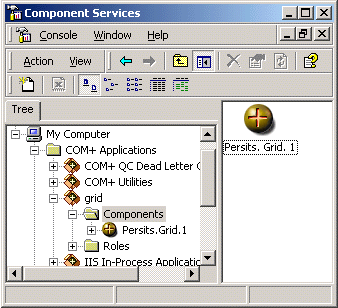
In MMC, open Microsoft Transaction Server and expand the branch Computers\My Computer\Packages Installed. Create a new package. In Component Services, expand the branch Computers\My Computer\COM+ Applications. Create a new application.
Once a package (application) has been created, use File Explorer to drag the file aspgrid.dll and drop it onto the Components sub-folder of the new package.
See Chapter 12 to learn how to configure AspGrid to take advantage of MTS/COM+ Role-based security.
1.4 "/AspGrid" Virtual Directory
1.5 Sample Microsoft Access Database
The AspGrid installation comes with the file AspGrid.mdb located in the directory \Samples\DB which contains a collection of tables that all the samples in this manual use. The database file is in the MS Access 2000 format. If you are using an older version of MS Access you will have to re-create this file manually.
The AspGrid.mdb database contains three tables: departments, employees, and cities The first two tables are connected via a one-to-many relationship: each employee is assigned to exactly one department, and each department has many employees. The cities table is stand-alone and is only used by the last chapter of the manual. The database tables, their fields and relationships are shown on the following diagram:
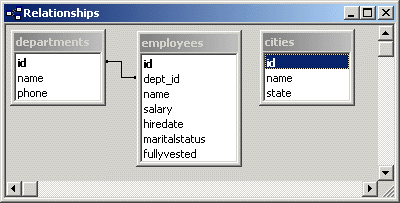
Each table in the sample database has the field id of the type Autonumber. An Autonumber field is filled with a unique value automatically by the database management system every time a new record is added to the table. SQL Server calls such fields IDENTITY columns. For a grid to be editable, a table it is based on must have an Autonumber (IDENTITY) column. This important requirement will be covered in detail in the next chapter.
1.6 SQL Server
1.7 Oracle
The Oracle database management system does not provide an equivalent of the MS Access Autonumber or SQL Server IDENTITY column. It is still possible to use AspGrid against an Oracle table that implements automatic unique numbering for one of its columns. This can be achieved using Oracle's SEQUENCE's and TRIGGER's.
We have provided the SQL script file oracle.sql which re-creates the sample database structure in Oracle. This script not only creates the three sample tables, but also emulates IDENTITY columns for the Employees and Departments tables via two SEQUENCE's and two TRIGGER's. The file oracle.sql can be found in the \Samples\db\ sub-directory of the installation. The simplest way to run this script is via Oracle's command-line utility sqlplus. At the DOS prompt, type
c:\>sqlplus
After logging in, type at the SQL> prompt:
SQL>@c:\Program Files\Persits Software\AspGrid\Samples\db\oracle.sql
